Bookkeeping Software
Bank Feed Setup and Rules in QuickBooks Online
May 25, 2026
You set up a bank rule six months ago. It fires every time a Stripe payout hits the account, auto-categorizes the transaction, and moves on. You forgot it existed. Now the books show $84,000 of revenue against $0 of payment-processor fees — because the rule was matching too broadly, and the fees that should have been categorized as an expense landed in revenue. Six months of P&Ls are wrong, the GST/HST returns filed off those P&Ls are wrong, and the bookkeeper inherits the cleanup.
This post covers what bank feeds actually do, the five bank-rule patterns that save real time, the three that corrupt months of books, and how to recover when a rule has already gone bad.
Key takeaways
Bank feeds automatically import transactions from your bank, credit cards, and payment processors into QuickBooks Online. They don't categorize anything by default — they import the raw data and wait for you (or your bookkeeper) to assign each transaction to a chart-of-accounts category.
Bank rules are the automation layer on top of bank feeds — if a transaction matches certain criteria (description text, amount, account), automatically apply a categorization. Used well, rules eliminate 70–90% of repetitive categorization work. Used poorly, rules corrupt the books faster than manual entry would have.
The five rule patterns that save time: recurring fixed-amount expenses (rent, software subscriptions), exact-payee matches (your phone provider, your hosting company), payroll-related (gross-to-net mappings from your payroll software), bank fees (always to one expense account), and merchant processor payouts (split-rule patterns for Stripe, Square, Shopify).
The three rule patterns to avoid: too-broad description matches (a single keyword like "transfer" or "deposit"), rules that mix split transactions (one Stripe payout = revenue, fees, refunds — not one category), and rules without an audit trail (auto-add without auto-confirm review).
A bad rule typically corrupts 50–500 transactions before being caught. Recovery is mechanical but takes time: find the rule, find the affected transactions, reclassify them, fix the rule. Catching it monthly during reconciliation is the cheapest way to keep this from snowballing.
What bank feeds actually do
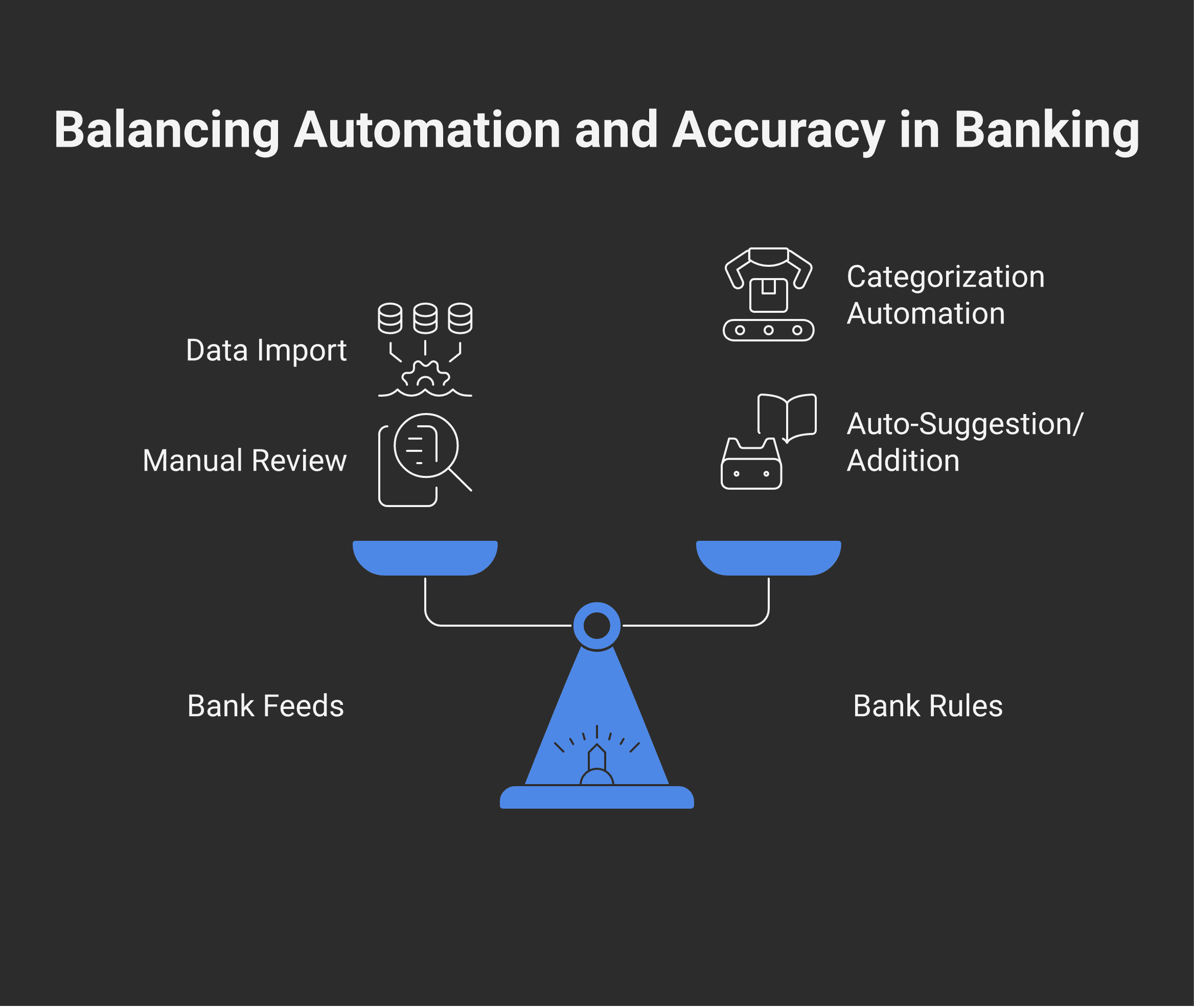
A bank feed is a direct connection between your bank, credit card, or payment processor and QuickBooks Online (or Xero, or any modern bookkeeping software). It pulls transactions automatically into the software in near real time — usually overnight, sometimes within hours of a transaction posting.
What the bank feed does:
Imports the date, description text, amount, and whether it's a debit or credit
Imports for bank, credit card, and (in newer integrations) payment processor accounts
Refreshes daily or more often
Holds transactions in a "For review" queue until they're categorized
What the bank feed doesn't do:
Assign a chart-of-accounts category — that's a separate decision
Decide whether a transaction is revenue, expense, transfer between accounts, or a personal expense run through the business
Match transactions to existing invoices or bills automatically (that's a separate "matching" step)
Reconcile — that's still a monthly process even with feeds running
Bank feeds are the data layer. Bank rules are the automation layer. The owner (or bookkeeper) is still in charge of categorization, even with both running.
The five bank-rule patterns that save real time
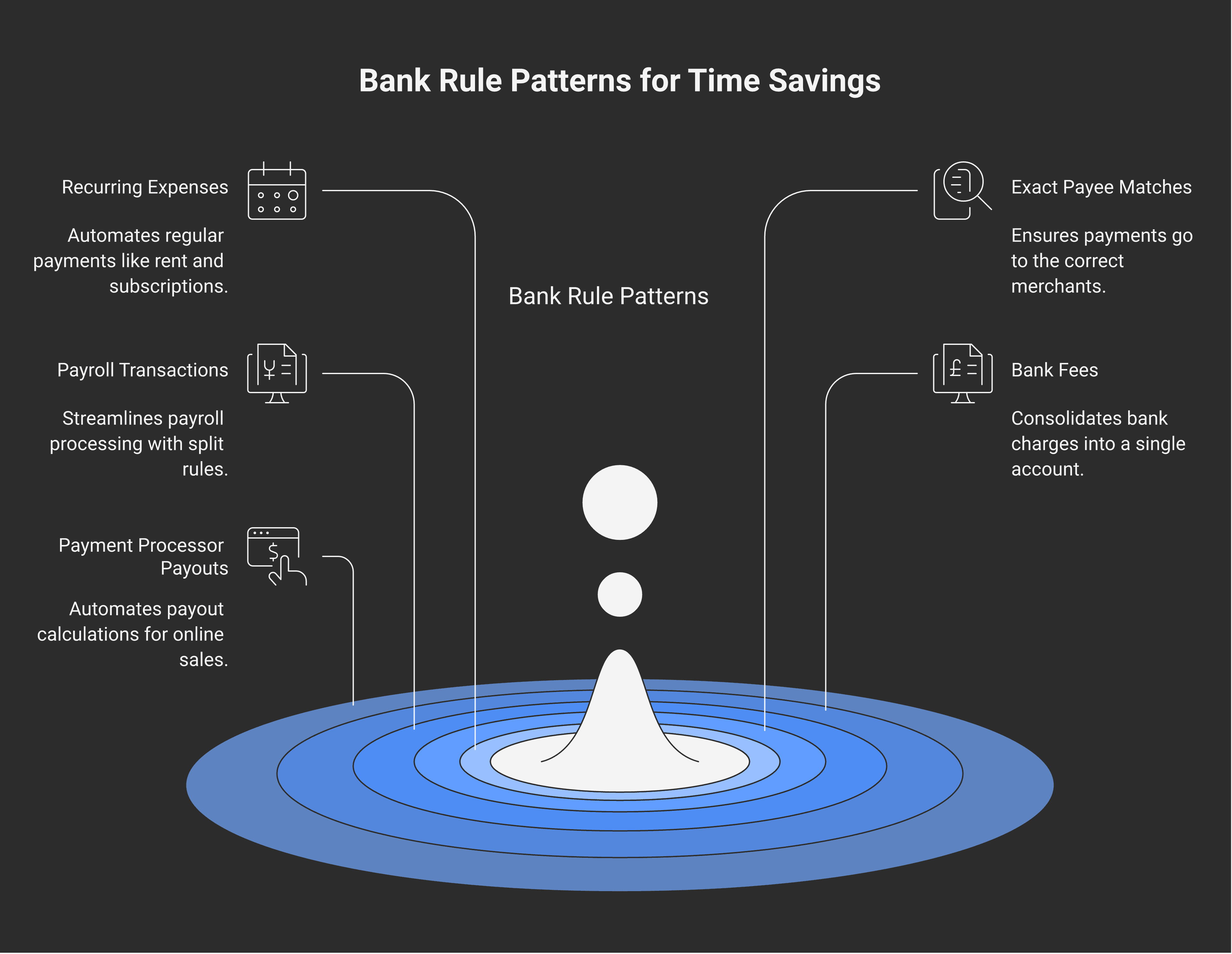
These are the patterns that consistently pay off when used well:
1. Recurring fixed-amount expenses
Rent, software subscriptions, gym memberships, insurance, fixed utility bills. If the same payee charges the same amount every month, a rule that matches "(payee name) AND amount = $X" auto-categorizes them with very low risk. The amount match is the safety — if the payee charges a different amount one month (a price increase, an extra service), the rule won't fire and the transaction lands for manual review.
2. Exact-payee matches
Your phone provider, your hosting company, your accountant, your bookkeeper. Specific known payees that always categorize to the same account. A rule matching the exact merchant name (not a keyword fragment) is safe.
The discipline: match the full merchant name as it appears in the bank feed, not a single word. "Telus" as a keyword catches everything starting with Telus; "Telus Communications Inc" as an exact match catches only that vendor's transactions.
3. Payroll-related transactions
If you're using QuickBooks Online Payroll, Wagepoint, or Payworks, the integration creates predictable transaction patterns: gross payroll cost hitting the wages expense, source deductions hitting the source-deductions-payable liability, net pay hitting the bank. Rules that match the payroll-software-generated description text to the correct accounts eliminate manual splits every pay period.
This pattern is critical if you're handling source deductions yourself — every paycheque has three or four lines that need to land in the right place.
4. Bank fees
Monthly account fees, transaction fees, wire fees, interest on credit cards. A rule that catches the bank's own posted descriptions ("monthly account fee", "transaction fee — POS", etc.) and routes them all to a single "Bank charges" expense account. Volume can be high (50+ per month for active businesses), and the categorization is always the same.
5. Payment-processor payouts (with split rules)
The hardest legitimate use case for rules — and the one with the highest leverage when done right. Stripe, Square, Shopify, and PayPal payouts are net amounts representing gross sales minus refunds minus processor fees. The right rule isn't "categorize this $4,217 payout as revenue" — it's a split rule that says "this payout = gross sales − refunds − fees" and lands each component in the right account.
These are advanced rules. Set them up once, test on three or four payouts manually before going automatic, and review monthly. Done well, they handle a lot of volume.
The three rule patterns to avoid
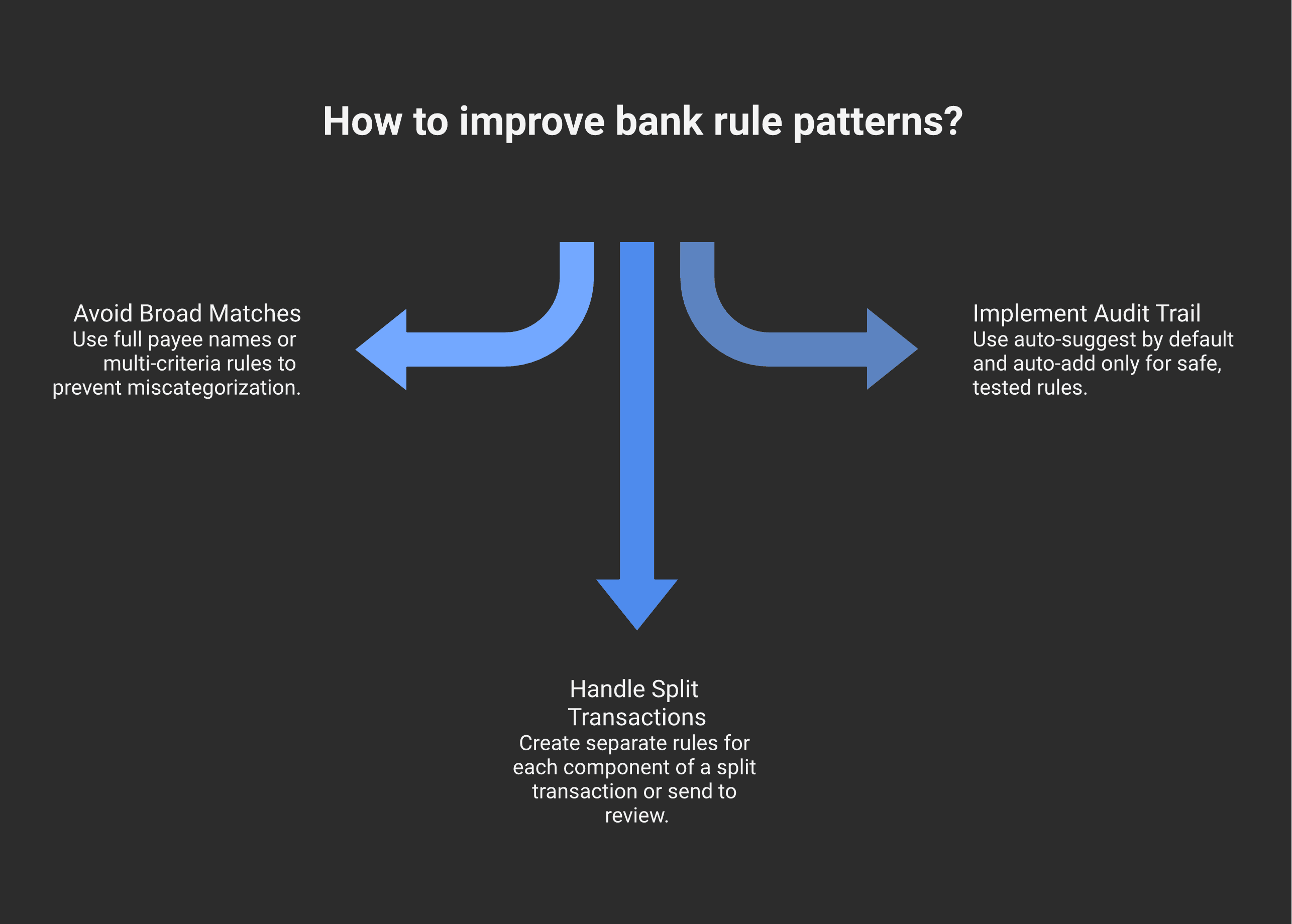
The shape of every bad bookkeeping cleanup engagement starts with one of these:
1. Too-broad description matches
A rule that matches a single keyword — "deposit", "transfer", "payment" — fires on every transaction containing that word. The first month it auto-categorizes 12 transactions correctly. The second month, a different vendor uses the same word in their description and the rule miscategorizes 4. By month six, dozens of transactions are in the wrong category and nobody noticed.
The fix: never match on a single common keyword. Match the full payee name or use multi-criteria rules (payee AND amount, payee AND account).
2. Mixing split transactions into a single category
A Stripe payout is not one transaction — it's net of gross sales, refunds, and processor fees, each of which belongs in a different account. A rule that categorizes the whole payout as "Sales revenue" misses the fees (which should be COGS or an expense), misses any refunds (which should reduce revenue, but as a separate line), and overstates revenue by the gross fees amount.
The same trap applies to:
Merchant credit-card payouts from Square, PayPal, Shopify
Loan payments (principal vs interest vs fees)
Bundled supplier payments where one cheque covers multiple invoices
For any transaction that's economically a split, the rule needs to be a split rule — or the transaction needs to land in "For review" and get manually split each time.
3. Auto-add without an audit trail
QuickBooks lets you set rules to either "auto-add" (the transaction is categorized and posted directly without review) or "auto-suggest" (the rule pre-fills the category but waits for your confirmation). Auto-add is faster — and dangerous. A bad auto-add rule fires silently for months.
The discipline: auto-add only for rules where the categorization is genuinely safe (rent, fixed subscriptions, bank fees). Auto-suggest for everything else, so a human eye sees each one before it lands.
How a bad rule corrupts months of books
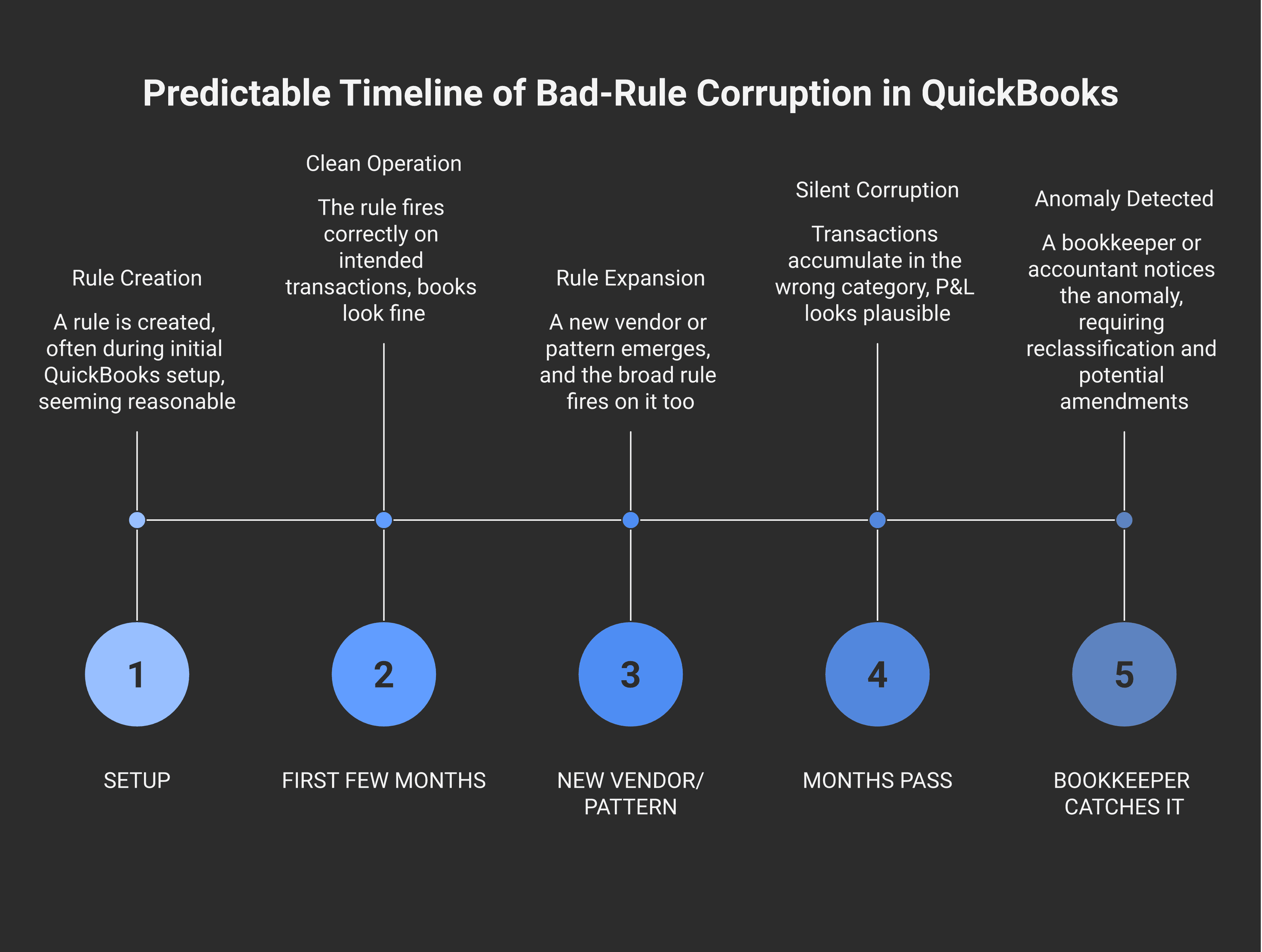
The pattern is predictable:
Setup — a rule is created, often by the owner during initial QuickBooks setup. It seems reasonable.
First few months — the rule fires on the transactions it was designed for. Everything looks fine.
A new vendor or transaction pattern emerges — different vendor description, different amount, different payment method. The rule fires on it too because the match criteria were too broad.
Months pass — 50, 100, 500 transactions accumulate in the wrong category. The P&L looks plausible; nothing's obviously broken; the owner reviews monthly statements and doesn't catch it because the wrong category is also a normal category to see activity in.
The bookkeeper takes over — or the year-end accountant reviews the file — and notices the anomaly. By now there are months of transactions to reclassify, and any GST/HST returns filed off the wrong categorization may need amendments.
The single most common version: a rule for "Office supplies" matches everything containing the word "office" in the description. Office Depot purchases go there correctly. Office space lease payments also go there, incorrectly. Six months in, $14,000 of rent expense is sitting in office supplies and the rent expense account shows zero. The P&L technically balances, the gross numbers are right, but the category-level numbers are wrong.
Recovering from a bad rule
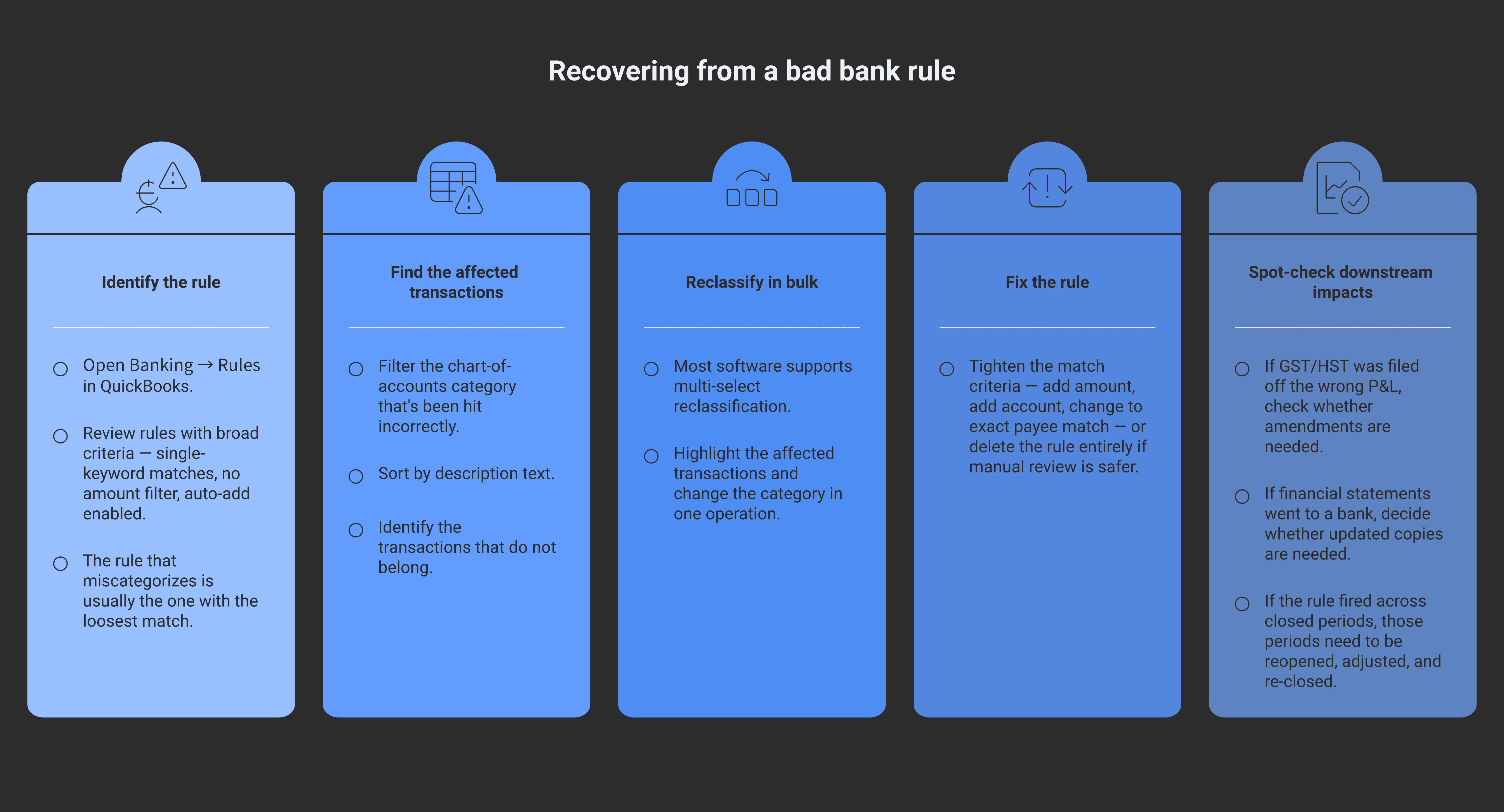
The mechanical cleanup, in order:
Identify the rule — open Banking → Rules in QuickBooks (or the equivalent in Xero) and review the rule history. Look for rules with broad criteria or auto-add enabled.
Find the affected transactions — filter the chart-of-accounts category that's been getting hit incorrectly. Sort by description text and look for transactions that don't belong.
Reclassify in bulk — most software supports multi-select reclassification. Highlight the affected transactions and change the category in one operation.
Fix the rule — either tighten the match criteria (add amount, add account, change to exact payee match) or delete the rule entirely if a manual review is safer.
Spot-check downstream impacts — if GST/HST was filed off the wrong P&L, check whether amendments are needed. If financial statements went to a bank, decide whether the bank needs updated copies. (The Modern Axis post on CRA compliance generally is useful context for the CRA-correspondence side; the bookkeeping basics post is the broader primer on what clean books look like.)
If the rule fired across two or more closed periods (months that have been formally closed in the software), the recovery requires opening those periods, making adjustments, and re-closing — which is more work but mechanically possible.
Setup principles for clean feeds
The defensive setup that avoids the bad-rule problem:
Connect feeds once, configure rules slowly. Don't set up 30 rules on day one. Let transactions flow into the For-Review queue for the first month, categorize them manually, and create rules only for the patterns you see repeating.
Match on payee + amount when possible. Multi-criteria rules are safer than single-criteria rules. "Telus AND amount = $89.99" almost never misfires.
Use auto-suggest, not auto-add, for the first 60–90 days of any new rule. Watch it fire in the queue. If it's correctly categorizing 100% of the matched transactions, then graduate to auto-add.
Review the rules list quarterly. Rules accumulate. Some go stale (the vendor changed names, the amount changed). Some were created for a one-time situation. Delete what's no longer useful.
Run monthly reconciliations on every account. The bank reconciliation is what catches bad categorizations before they snowball. If the bank balance matches the books to the penny, the totals are right; the categorizations still need a second look every month.
The Dext / HubDoc layer on top
Bank feeds tell you a $400 transaction happened. They don't tell you what it was for or attach the receipt. Dext (formerly Receipt Bank) and HubDoc are the receipt-capture layer on top of bank feeds — you photograph the receipt or invoice, the software OCRs it, the data flows into QuickBooks alongside the bank-feed transaction, and the two get matched.
The combined workflow:
Bank feed posts the transaction
Dext/HubDoc posts the receipt
Software matches them or the bookkeeper does
The transaction has both a bank record (proves payment) and a receipt (proves business purpose) — exactly what the CRA needs in a review
For Modern Books System Setups & Automation work on the Modern Axis side, this layered setup is standard. Bank feeds plus rules plus Dext capture plus monthly reconciliation is the operational baseline that produces audit-proof books with minimal owner time.
When the bank-feed cleanup lands on a bookkeeper
Modern Books reviews every bank rule on onboarding — disables auto-add rules with broad criteria, replaces them with auto-suggest or multi-criteria versions, sets up split rules for payment processor payouts, and adds Dext or HubDoc capture for receipt matching. Modern Books' Mid and Growth tiers handle this as part of standard onboarding. More setup posts in the Modern Books resource hub.
Frequently asked questions
What's a bank feed in QuickBooks Online?
A bank feed is a direct connection between your bank, credit card, or payment processor and QuickBooks Online that automatically imports transactions into the software in near real time. It pulls the date, description, amount, and debit/credit indicator. It does not categorize transactions — that's still your decision (or your bookkeeper's), either manually or via bank rules.
What's a bank rule?
A bank rule is an automation that applies a category (and optionally a payee, class, or location) to transactions that match certain criteria — usually description text, amount, or account. Used well, rules eliminate 70–90% of repetitive categorization work. Used poorly, rules corrupt the books faster than manual entry would have.
Should I use auto-add or auto-suggest in QuickBooks rules?
Auto-suggest is the safer default. The rule pre-fills the category but waits for your confirmation before posting. Auto-add is faster — and dangerous: a bad rule fires silently for months. Use auto-add only for rules where the categorization is genuinely safe (rent, fixed subscriptions, bank fees) and the rule has been firing correctly for 60–90 days.
How do I find which bank rule is breaking my books?
Open Banking → Rules in QuickBooks (Settings → Bank Rules in some versions). Review rules with broad criteria — single-keyword matches, no amount filter, auto-add enabled. Cross-reference against any chart-of-accounts category showing unexpected balances. The rule that's miscategorizing is usually the one with the loosest match criteria.
How do I reclassify transactions that a bad rule miscategorized?
Filter the chart-of-accounts category that's been hit incorrectly. Sort by description text. Identify the transactions that don't belong in that category. Most bookkeeping software supports multi-select reclassification — highlight the affected transactions and change the category in one bulk operation. Then fix or delete the underlying rule.
Do bank feeds work for Stripe, Square, and Shopify payouts?
Yes, with caveats. Newer integrations (QuickBooks Online + Shopify direct connector, Stripe app for QBO, Square app) handle payouts as split transactions correctly — gross sales, refunds, and processor fees each land in the right account. Generic bank-feed connections (your bank account receives the payout as a single net amount) require a split rule or manual splitting. The latter is where most miscategorization happens.
How often should I review my bank rules?
Quarterly at minimum. Rules accumulate over time, some go stale (vendor changed names, amounts changed), some were one-off creations. A quarterly review takes 15 minutes and catches the rules that need tightening or deletion before they fire incorrectly for another three months.
Are bank feeds CRA-compliant?
Yes — bank feeds don't change the fundamental CRA requirements for record-keeping. The CRA requires that you keep transaction records, supporting documents (receipts, invoices), and reconciliations for six years from the end of the tax year. Bank feeds + rules + receipt capture (via Dext or HubDoc) actually make compliance easier because the underlying records are digitally captured and matched.
This post covers general bookkeeping software practice and isn't bookkeeping advice for your specific setup. QuickBooks Online and Xero features change over time, and the right rules configuration depends on your business, your bank, and your transaction patterns. Talk to a bookkeeper who knows your numbers before relying on what you've read.